
 Jean-Romain
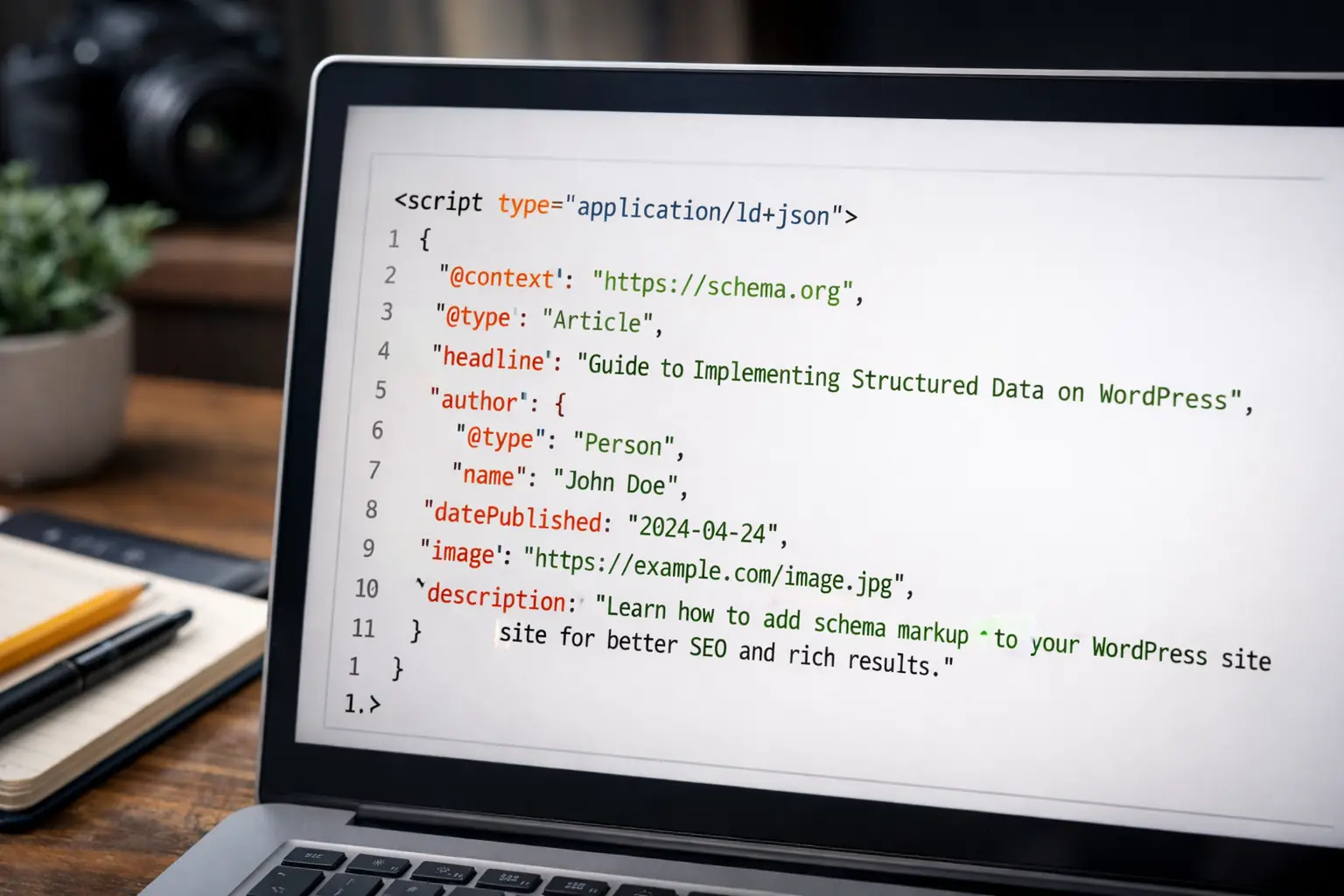
Structured data is how you explain your website to search engines, clearly, without ambiguity. On WordPress, it usually means adding schema.org markup so Google understands what a page really is, an article, a product, a local business, a FAQ, not just a block of text. When done right, WordPress structured data helps Google display rich results like stars, prices, FAQs or breadcrumbs, which can increase CTR by 20 to 30 percent according to multiple industry studies.
Implementing structured data on WordPress is not complicated, but it is easy to do it wrong. The goal is not to add as much schema as possible, it is to add the right schema, in the right format, that perfectly matches the visible content of the page. Most WordPress sites already have partial schema without knowing it, via themes or SEO plugins. The real work is understanding what to keep, what to fix, and how to make your structured data clean, consistent and useful for search engines.
Step 1: choose your implementation method (the 60 second decision)
Most people lose time here because they treat WordPress structured data like a “plugin choice”. It’s not. It’s a setup choice, based on how your site is built today, and how it will evolve next month.
Quick proof it’s worth doing properly, Google shares a Nestlé case study where pages showing as rich results had an 82% higher click through rate than non rich result pages.
The decision table
| Your situation on WordPress | Best method | Why it works |
|---|---|---|
| Blog, service site, basic pages | SEO plugin schema | Fast setup, low maintenance |
| Ecommerce, WooCommerce store | SEO plugin plus Product tuning | Product markup needs clean offers, availability, price |
| Local business, multi location | SEO plugin plus LocalBusiness fields | You need consistent business entities per location |
| Custom post types, directory, listings | ACF or custom JSON LD | You want dynamic schema from fields, not manual copy paste |
| You are migrating SEO plugins right now | Pause and audit first | Duplicate schema is the silent killer |
Small real life story, I’ve seen a site “implement schema”, see no impact, then we found two plugins outputting two different Product schemas on the same URL. After cleanup and validation, rich results started appearing again after Google recrawled.
Method A: use an SEO plugin (the default for 80% of sites)
This is the fastest path to implement structured data on WordPress without touching code.
Do this if you want results quickly, and your pages follow standard templates, like posts, pages, products, categories.
What you should expect a plugin to handle well
- Organization or Person entity for the site
- Website basics, breadcrumbs
- Article markup for blog posts
- Product basics if WooCommerce is present
Your job is not to “add more schema”, your job is to make sure the schema output matches what the page actually shows to users, Google is explicit on this in its structured data guidelines.
Method B: add JSON LD manually (when you need control)
Manual JSON LD is for people who want clean, minimal markup, or who have a developer, or who are using a custom theme setup.
Use it when:
- you need a schema type your plugin doesn’t model well
- you want to inject dynamic values from your own logic
- you want full control over the exact properties sent to Google
You will still validate with Google’s Rich Results Test to see what rich results can be generated from your page.
Method C: use ACF and generate schema from fields (best for CPT and directories)
If your WordPress structured data must reflect structured content you already have, like listings, locations, jobs, events, products with specs, ACF is the cleanest mental model.
You store data once, then you output schema automatically on every item, without human error.
ACF’s own guide highlights this exact angle, structured content needs structured data, especially beyond WordPress defaults.
Step 2: Implement WordPress structured data with an SEO plugin
A plugin is the fastest way to add schema.org markup in WordPress because it hooks into your templates. The only real risk is having more than one tool output the same structured data, that’s when Google gets messy signals. Google’s policy is simple, schema must match what users can see on the page.
2.1 Pick one “schema owner”
Choose one tool to output schema, usually your SEO plugin. Avoid overlapping outputs from theme settings, Woo extensions, or a second SEO plugin.
Quick check, run your homepage in Rich Results Test, if you see duplicate items like two Organizations or two Products, you have a conflict.
2.2 Set your site wide foundation
Fill the basics once, then leave them alone:
- Organization or Person, pick one
- Logo, stable URL
- Breadcrumbs enabled, if your theme does not already do it
Yoast calls this a schema graph approach, it helps search engines connect your pages to one clear entity.
2.3 Set defaults by page type
Keep it boring, boring ranks.
- Posts, Article
- Woo products, Product
- Service pages, WebPage or Service
- Location pages, LocalBusiness only if the address and hours are visible
Rank Math’s approach is exactly this, defaults first, overrides only when needed.
2.4 Add page level schema only when it changes the outcome
Use FAQPage or HowTo only if that content is actually on the page, visible, and complete. Otherwise you risk losing eligibility for rich results.
2.5 Validate in 30 seconds
- Rich Results Test, checks Google eligibility
- Search Console Enhancements, monitors errors at scale
Step 3: Implement structured data manually with JSON LD on WordPress (full control, zero plugin lock in)
Manual JSON LD is the cleanest way to implement schema.org markup when you want predictable output. You write one script, WordPress prints it, Google reads it, done.
This is also where people break things, not because JSON LD is hard, but because they paste random snippets, forget commas, or generate schema that doesn’t match the page. Google’s policy is strict here, don’t mark up content that isn’t visible to readers.
3.1 Where to add JSON LD in WordPress (choose the safest option)
You have 3 common options. Pick the one that matches your comfort level.
| Option | Best for | Risk level | Why it’s used |
|---|---|---|---|
| Code Snippets plugin | Non devs, fast tests | Low | Safer than editing theme files |
| Child theme, functions.php | Dev friendly sites | Medium | Clean, versioned, predictable |
| Custom plugin | Agencies, long term projects | Low | Portable, no theme dependency |
If you do not have a dev workflow, Code Snippets is usually the best balance. If you switch themes often, a custom plugin is the most stable.
3.2 The WordPress placement rule (so Google actually sees it)
JSON LD should be output in the HTML, ideally in the head, as a script tag with the correct type.
Two practical notes:
- Don’t inject it with a visual builder widget that only loads after user interaction
- Don’t hide it behind scripts that run late, you want it in the initial HTML
A common WordPress pattern is to generate the JSON with PHP, then print it through the wp_head hook. This is a standard approach discussed in WordPress developer communities.
3.3 Minimal templates that work (copy, adapt, validate)
You don’t need 12 schema types. Start with what most sites actually use, then expand.
Template A, Organization (site wide)
Use this if your site represents a company.
Required mindset, only add what is true and visible somewhere on the site, like your brand name and logo.
- name
- url
- logo
- sameAs (only real profiles)
Template B, Article (blog post)
Use this for posts, guides, news, tutorials.
Focus on:
- headline
- datePublished
- dateModified
- author
- image
Tip from real life, dateModified is a silent CTR lever for queries where freshness matters, it can increase trust even when rankings stay the same.
Template C, LocalBusiness (location page)
Use only if the page is clearly a location page, address, hours, phone.
Key fields:
- name
- address
- openingHours
- telephone
If those details aren’t on the page, don’t add them in schema. Google explicitly warns against marking up hidden or non visible info.
3.4 Validation workflow (this is where you win)
Manual schema without validation is like publishing code without testing.
Do it in this order:
- Schema Markup Validator, checks schema.org validity and catches syntax mistakes
- Rich Results Test, checks Google rich result eligibility for that URL
Small story, I once had a Product schema that was “valid” but not eligible because offers fields were incomplete. Validator was green, Rich Results Test was not. That’s why you run both.
Step 4: Structured data for Custom Post Types (CPT) and ACF (dynamic schema, no manual edits)
If your WordPress site has Custom Post Types, like listings, doctors, locations, vehicles, courses, job posts, structured data becomes a scaling problem.
You can’t copy paste JSON LD on 300 items, and you can’t trust humans to keep prices, dates, and specs consistent. The clean solution is simple, store data in fields, then generate schema automatically from those fields.
ACF’s guide frames the same idea, WordPress defaults cover basic posts and pages, but custom structures need a structured data approach built around your content model.
4.1 The mental model, fields in, schema out
Here’s how dynamic schema works in real life:
- You create fields for the data you already need, price, address, rating, start date, author, SKU
- Your template prints that data on the page for users
- Your code prints the same data in JSON LD for search engines
This is not extra work, it’s the same data, two outputs.
Google’s main rule still applies, schema must represent the content on the page, not a hidden database.
4.2 Mapping table, ACF fields to schema properties
This is the part that makes it click. You map your WordPress fields to schema properties once, then every CPT item is covered.
| CPT example | ACF field | Schema type | Schema property |
|---|---|---|---|
| Location page | Address | LocalBusiness | address |
| Location page | Phone | LocalBusiness | telephone |
| Listing | Price | Product or Offer | offers.price |
| Listing | Availability | Product | offers.availability |
| Event | Start date | Event | startDate |
| Job | Salary | JobPosting | baseSalary |
| Course | Provider | Course | provider |
Tip, don’t obsess over having every possible property. Start with what is required for eligibility and what is visible on the page, then expand.
4.3 Choose the right schema type for your CPT (don’t guess)
Most CPTs fall into a few patterns. Pick the schema type that matches the user expectation of the page.
Common matches:
- Directory listing, Product or LocalBusiness depending on what it is
- Event calendar item, Event
- Job listing, JobPosting
- Course page, Course
- Real estate style inventory, usually stays closer to Product plus Offer, unless you have a very specific setup
Google’s Search Gallery is the quickest way to see which schema types actually unlock rich results, so you don’t waste time marking up things that will never display.
4.4 Implementation flow, the clean way to generate JSON LD dynamically
You do not need a complicated architecture. You need one function that builds a JSON object from your ACF values, then prints it.
High level workflow:
- Detect which CPT you are on
- Pull ACF fields for that post
- Build a JSON LD object with only the properties you can populate correctly
- Output the script tag in the page HTML
If you have a developer, the most stable approach is shipping this as a small custom plugin, not inside the theme, so you don’t lose it on redesigns.
4.5 Quality checks specific to CPTs (this is where most setups fail)
CPT schema breaks for two reasons, missing fields, and inconsistent formatting.
Fix both with a simple checklist:
- Dates in ISO format, no “next Monday” text
- Prices as numbers, not “from 99€” strings
- Address split properly if you can, street, city, postal code
- If a field is empty, don’t output the property
Then validate:
- Schema Markup Validator for syntax and schema correctness
- Rich Results Test for Google eligibility
Small story, I’ve seen a directory site where 40% of listings had empty opening hours, but the schema still printed the property as blank. Google flagged it site wide. We removed empty properties, errors dropped fast, and enhancements came back.
Step 5 validate and monitor structured data at scale
Implementing structured data is only half the job. Validation is where most WordPress sites either win quietly or fail without knowing it.
Google does not reward effort, it rewards correct, eligible, consistent markup. That means you need a simple validation routine you can repeat every time you add or change schema, and a way to monitor issues without checking URLs one by one.
5.1 Validate one page the right way
Always start small. One URL. One check.
Use two tools, always in this order.
First, Schema Markup Validator.
This checks if your JSON LD is valid according to schema.org rules. It catches syntax errors, wrong property names, and structural mistakes. It does not tell you if Google will show rich results, only if your schema makes sense technically.
Then, Google Rich Results Test.
This tells you if the page is eligible for Google rich results and which ones. This is the tool that actually matters for SEO impact.
Real life example, I often see pages marked as valid in the schema validator but not eligible in Rich Results Test because required properties are missing. Green does not always mean useful.
5.2 Understand errors vs warnings so you do not panic
Not all messages are equal.
Errors
- Block eligibility for rich results
- Must be fixed
- Usually missing required fields or invalid values
Warnings
- Do not block eligibility
- Often missing recommended fields
- Fix them if you can, ignore them if you cannot populate them honestly
Google states clearly that recommended fields improve appearance but are not mandatory. Fix errors first, then decide if warnings are worth the effort.
5.3 Monitor structured data at scale with Search Console
Once Google crawls your pages, structured data reports appear under Enhancements in Search Console.
This is where you stop guessing.
What to watch:
- Error count trend, it should go down over time
- Affected URLs, patterns usually point to one template issue
- Validation status after fixes
If you fix a template or schema logic, always use “Validate fix”. It speeds up reprocessing and avoids waiting weeks for confirmation.
FAQ about Sctructured data in WordPress
Can structured data improve rankings or only rich results
Structured data mainly unlocks rich results and better understanding, it is not a direct ranking boost, but higher CTR can indirectly help performance over time.
How long does it take for rich results to appear after adding schema
It depends on crawl speed, usually a few days to a few weeks, test the URL, request indexing, then watch Search Console enhancements.
Should I add schema on every page or only on key pages
Add baseline schema site wide, then prioritize high impact templates like products, services, and location pages, avoid forcing schema everywhere.
What should I do if Search Console shows errors but my page works fine
Fix errors first because they block eligibility, most come from missing required fields, then validate the fix and monitor the affected URLs.
Can I use FAQ or Review schema on any page to get more space in Google
No, only use FAQ or Review markup when the content is visible and real, misuse can remove eligibility and trigger manual actions.